
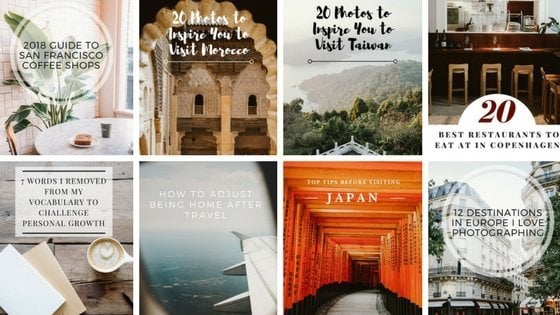
Okay so you guys asked for it and here it is! This guide to how I create Pinterest pins with text overlay will show you just exactly what to do. After many requests on how to make these images, I wanted to share this quick guide to creating beautiful Pinterest pins with text. 
Text overlay pins are really great for showing up on search results on Pinterest, as the text indicates exactly what a viewer will see when they click. I use them constantly for my guides and include them in every single one of my posts. I have a super, user-friendly process (you don’t need to know Photoshop at all!) to help create these pins.
How I Create Pinterest Pins with Text Overlay
Step 1: Sign up for Canva
This is my secret — meet Canva! It’s the friendliest website for quick text overlay on images. You can create content for presentations, Pinterest and more!
Step 2: Create a design
The next step is to create a design and they have the option for a Pinterest graphic. It’s optimized for size and text!

Step 3: Add in images
Next step is easy, drag over your images and get them downloaded. 
Step 4: Pick a template
As my images are getting downloaded into the system, I start to poke around templates. There are hundreds to choose from, some are paid and some are free. I’ve started customizing my own by adding in text and objects. The templates are a great starting point. 
Step 5: Create
Once you found a template, drag in the image and start creating the look you want. You can add in more text, change the color, and the size! 
Step 6: Download and save template
Once you’re happy with your final image, click on the top right corner to save it. I also save my templates so I have a base for when I go back in. Canva saves them into your account, so they’re easily accessible!
Step 7: Finished!
That’s it! Super simple way to get that Pinterest pin look with text. It’s a great way to add diverse content to Pinterest and they can be used for Insta-stories to promote blog posts!
If you want to find out how I edit my Insta-stories, be sure to check out this post too!
Save this post for later on Pinterest:
PS — Are You Booking a Trip Soon? Use My Booking Checklist!
These are the sites I use most to book my own trips. Using the links below is a great way to support Bon Traveler’s travel journalism at no extra cost to you. If you need help organizing your itinerary, get my free travel itinerary template here.
1. Book Your Accommodations
I use Booking.com for hotels and Airbnb for vacation rentals. They have the biggest inventory and consistently offer the best rates.
2. Book Your Rental Car
Self-driving is the best way to explore most destinations. I use Discover Cars for our rental cars, select full coverage insurance, and opt for a reputable company like Alamo, Hertz, or Sixt.
3. Book Your Tours & Experiences
I use Viator, Airbnb, and Get Your Guide to find the best tours and experiences. They are my favorite tour search engines. I always check all three as their inventory varies depending on the destination.
4. Book Your Private Transfers
For easy, reliable private transfers, I use Welcome Pickups. It’s my go-to for arranging a driver in advance — whether it’s an airport pickup, a hotel-to-hotel transfer, or a day trip. The experience is seamless, with English-speaking drivers and upfront pricing, so you can travel stress-free at every stage of your trip.
5. Get Cell Data for Your Trip
I use Holafly for international cell data. Their unlimited data eSIMs are easy to install, activate instantly on arrival, and let you skip local SIM cards and expensive roaming fees.
6. Don’t Forget Travel Insurance
I never leave the country without travel insurance. It provides comprehensive protection in case anything goes wrong (ie. illness, injury, theft, or cancellations).
My favorite companies that offer the best coverage and rates are:
- World Nomads (best for all-around)
- Safety Wing (best for frequent travelers)
Xx,
Jessica


1 Comment
Thank you for posting this! It was just what I was looking for 🙂 I just started a food blog and am drawn to images on Pinterest that display text so you can see quickly what the post is about – now I know how to do that myself 🙂 Have a lovely day! Andrea